100% Security
Instant Download 24/7
10+ Years of Service
0 Reviews
$29.95
$49.95
Save 40%

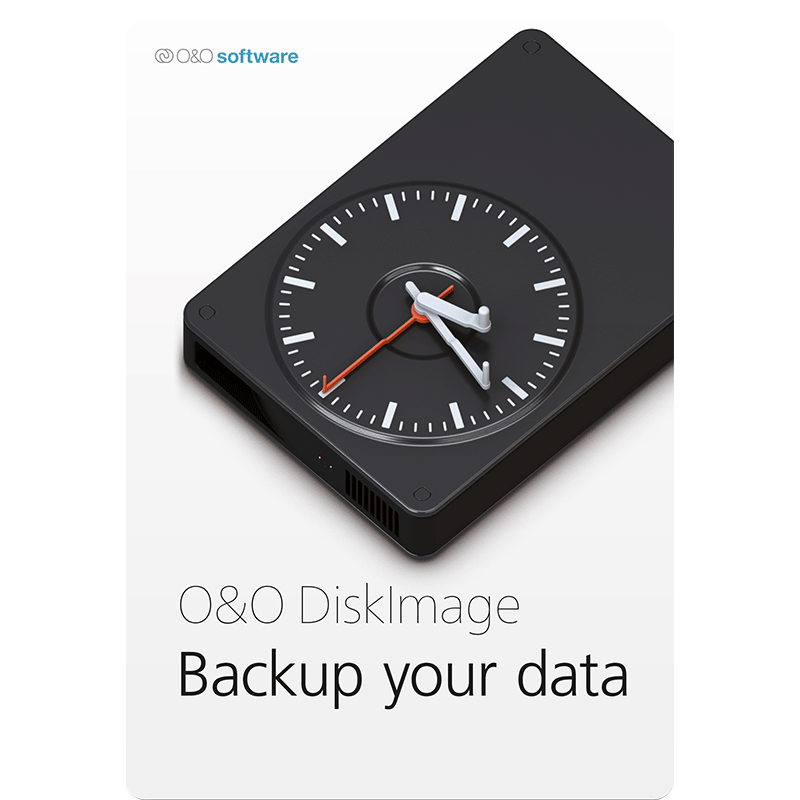
O&O DiskImage 22 Professional

includes a 1-PC license

+ login to earn points
Platform
Windows 10
Windows 11
Version
22
Manufacturer
Twitter
Last Updated
31 January 2026
Download Size
23.00 MB

Anyone who’s ever experienced the shock of data loss, or had to spend hours recovering their system, will know the importance of backing up. Having a fall-back copy of both Windows – including all your favourite apps and painstakingly crafted settings – and your irreplaceable documents, media and other files is a no-brainer, but what is the best way to go out doing it?

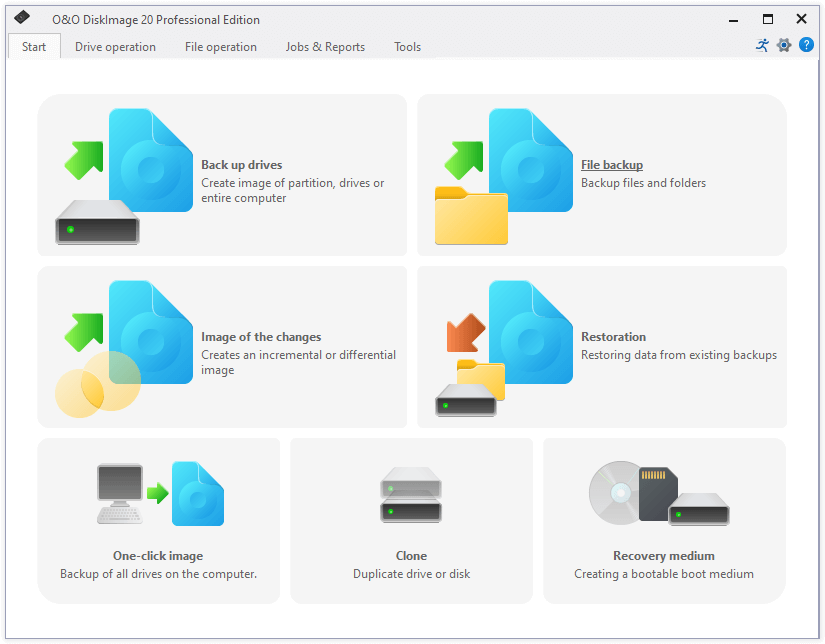
O&O DiskImage Professional provides you with all the tools you need for backing up both individual data such as selected files and folders, plus take drive images of entire partitions and drives. While’s it’s still not a tool for complete beginners, it does provide some hints and tips to guide you towards protecting your data, and the latest version attempts to make things even easier with a revamped sort-of Windows 11-style interface.

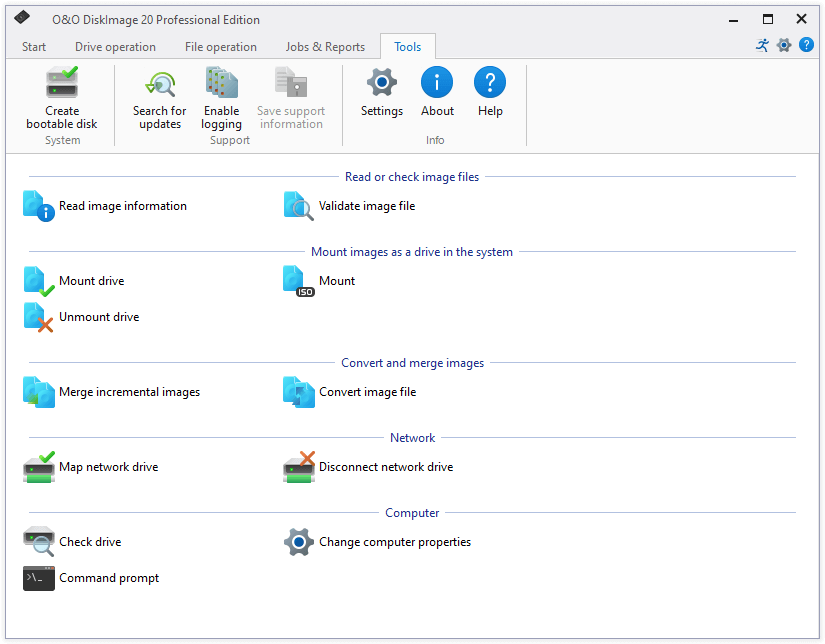
After installing, you'll choose the function you need by clicking on the appropriate tile: "Start drive imaging", "Start file backup", "Create one-click image" or maybe "Create bootable disk",

Pick the imaging option and you're able to create images of all your drives with a click.

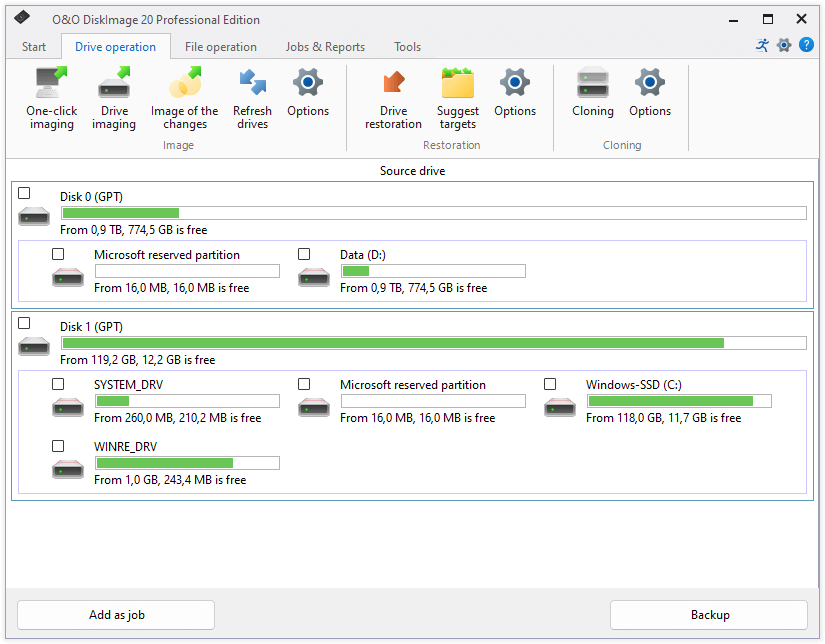
Alternatively, select a source drive or volume, click "Start drive imaging" and you can run a backup using the default settings.

But if you need full control then clicking Options allows you to set the imaging method (used or all sectors), destination format (DiskImage or VHD), image type (full/ incremental/ differential), compression, encryption, exclude filters, and a whole lot more.

Backups will by default be run on demand, but set them up as a "job" and they can be run at defined times, particular days of the week, at regular intervals, or when certain devices are connected. There are also options to receive email notifications, run commands before or after the job, or maybe shut your system down when it's finished.

You can also opt to back up individual files and folders with O&O DiskImage – this is a simple case of browsing a file explorer window for items to back up, ticking folders and files as you go. There are similar options to run complete, incremental or differential backups, compress or encrypt your archives, and more.

When it comes to managing your backups as well as restoring them, DiskImage has all the options you need. You can restore entire images or select individual files and folders, plus “mount” your image files in Windows, allowing you to browse them like any other attached drive.

DiskImage also allows you to convert drive images into virtual hard disks, allowing you to attach them to programs like VirtualBox or VMWare Workstation for using as virtual PCs. Advanced users will also be pleased to find DiskImage supports Machine Independent Restoration, allowing you to tweak backup images so they can be restored to different computers – a great way to migrate from an old PC to a new one.

Create a recovery disc when you're done and you'll be able to restore backups - on EFI/UEFI and BIOS-based systems - even if Windows won't start.

While O&O DiskImage Professional remains a little too technical for complete beginners, the retooled user interface does make things a little simpler for anyone with a smidgeon of experience using drive-imaging apps, and the wealth of advanced functionality should continue to attract experts looking for a disk-imaging solution with a bit more oomph.

Includes a 1-PC license.

Review by Nick Peers.

Performance Issues?

Most system performance issues are often a result of other software clashing with your brand new software. For instance, security software can clash with a background process, such as a system maintenance tool or defragmentation software. Another cause of system slowdown, is a result of two software applications performing a similar task. As an example, Windows includes a firewall switched on as a default. Your new security suite is likely to include a firewall. You only need one firewall running. In this example, try turning off your system firewall.

Uninstalling Your New Software

Occasionally you may need to either temporarily or permanently remove your new software.

On a Windows computer, go to the Control Panel and choose Programs and Features. Locate the program within the list, then click it to highlight it. Finally, click the Uninstall button at the top of the list and follow the instructions to remove the program from your PC.

On an Apple Mac computer, using Finder, locate the Applications folder. Within the Applications folder, find the name of the application you wish to remove. Simply drag the icon to your Trash icon in your dock. Empty the Trash to remove the files from your computer.

Still Having Problems?

If you cannot solve your system performance issues or are struggling to remove your software, we advise contacting the software manufacturer. If you placed an order, see the section in the order which states Support options. Alternatively, go to the Contact Us page to contact store support directly.

Frequently Asked Questions

Find quick answers to the most common questions about our services and platform

How Do I Order Software?
Simply select the software you want to order by clicking the "Buy Now" button or, where the option exists, clicking on "Upgrade". The upgrade option enables you to upgrade from a previous version of the software. When you click "Buy Now" you will be taken to your shopping cart, powered by PayPro, where you can choose a payment option and then receive your download and serial code within seconds, after making your payment.
What Is The Extended Download Option?
When you place your order, you might see an option for "Extended Download Option" in your shopping cart. After you order software online, you will receive a digital download and a serial code by email from PayPro. If you create a PCWorld Software Store account, you normally have 30 days from placing the order to download your software, if you need to download again in the future. You can choose to extend this to two years, enabling you to login to your account and find your download, serial code(s) and your original invoice. Ideal if you need to re-install your software, suffer from a system crash or buy a new PC. Simply head to the "My Account" section on this store to access previous orders.
How Do I Access My Order, After Ordering?
Your order will be emailed to you from PayPro. In addition, you can find your order in your store account for 30 days after ordering. You need a store account and, for security reasons, the email address used in the order, must match your store account email. Simply create a store account (if you haven't already) and login to find your order information. If you purchased 'Extended Download Insurance' you can find and access your order for up to two years from the date you placed your order, rather than the standard 30 days.
Why Are Some Prices Dynamic?
This store supports fixed pricing in USD, EUR, GBP, AUD, NZD and CAD currencies. If you purchase in USD or GBP the price on the store reflects the currency in your shopping cart. If you are based outside these currency regions, you can still order, but the currency will be converted from the fixed USD price. Alternatively, you could pay in USD and simply allow your card issuer to convert from USD to your local currency (although a small conversion fee may apply).
Why Was My Card Declined?

In most instances this will be due to fraud protection from your credit card provider. Most card companies require you to signup to "3D Secure" which will send a 6-digit code to your mobile phone and/or your email address to make sure it's you placing the order. This was designed to help prevent against online fraud, so card companies make sure you are the person paying for your goods by authenticating the transaction.

Although you have protection when you purchase goods, online, through your credit card, your company may decline a large order or an order made through an online store for the first time. If your card is declined, we suggest you speak with your card provider and/or your bank. You can also pay through PayPal, Google Pay, Apple Pay, wire transfer or other payment formats.

Can I Ask For A Refund?

We strongly suggest you download and test trial software before placing your order. Trial software is provided to enable you to determine whether it's applicable for your system and meets your requirements. Once you are happy with your trial software, place an order. Digital downloadable software often cannot be refunded unless the order was placed in error and the order remains completely unused.

Activated software cannot be refunded as the code becomes the property of the customer and cannot be resold or reused. If you ordered in error or there is another problem with your order, contact PayPro directly for a refund.

Who Keeps My Order Information?
Your transaction is between yourself and our e-commerce provider, PayPro Global. PayPro will NEVER re-use your information, pass on to a third party and will not contact you unless you contact them with a query. Your credit card information is not kept on file and is not stored by any third party. If you ordered Extended Download Insurance with your order, we retain basic information about your order on our secure server. This includes your name, email address (required to access your account), serial codes ordered and download links to your software. No-one has access to this information apart from yourself. This information is only available once you have registered your account using the email address you used to place the order.

Write a review

Find What You Need!
Payment Methods
Trusted Partners
AVG F-Secure Auslogics McAfee O&O Software Bitdefender
100% Security
Instant Download 24/7
10+ Years of Service